WoW Forever: how to get the Prairie Chicken pet
Get the Prairie Chicken pet at Saldean’s Farm in WoW Forever: buy the feed, use /chicken, accept CLUCK! and collect the egg with this step-by-step guide.
 WoW4EverNEWS
For the players of Forever.
Keybinds, bags, camera, names and action bars: a guide to the settings shown in the WoW Forever demonstration, including the menus still under development.
WoW4Ever.fr’s September 14 walkthrough explores the menus in a demonstration client. Controls includes targeting, left-click interaction, auto loot, combined bags and mouse sensitivity. These are useful first stops when setting up familiar controls.
Auto loot applies to the corpse or object you click; the checkbox alone does not promise area looting. The options search helps locate automatic camera following, which the demonstration switches off. Audio offers separate volume controls for music, effects, ambience and dialogue.
Start with your most-used spells and choose keys that feel comfortable on your keyboard.
In Quick Keybind Mode, hover over the action button and press the desired key. The demonstration also shows a character-specific configuration option.
Save through the dialog, then test the bindings in play. The dialog also offers reset and cancel.
HUD Edit Mode highlights interface elements and provides a grid, alignment options, group frames and cast bar settings. The walkthrough shows an action bar being moved.
Nameplates have a preview, stacking options, size controls and effect scaling. Separate toggles control your own name and secondary name. Changing that display setting does not change the rules for your character’s unique identity.
The map and quest log share a window with a search field and objective tracking. Guidance depends on your chosen options. A 0/40 counter appears in this session, but that alone does not establish the final quest log limit.
The character sheet includes an equipment manager with controls to create, save and equip sets. The professions panel shows two main professions followed by Cooking, Fishing and First Aid.
Advanced Options shows a Damage Meter toggle and automatic reset. Its tooltip describes tracking for the character and group, but the walkthrough provides no meter results to assess.
Diminishing Returns is marked Work in Progress. Gamepad appears with an Alpha label and is not tested with a controller in this session. An Arena Frames entry does not demonstrate playable arenas; Shop and Account Collections are disabled.
This guide adapts WoW4Ever.fr’s illustrated September 14, 2026 walkthrough, linked in the sources. Its screenshots help locate menus, but cannot guarantee how every feature behaves in later builds.
Updated
The guides players are reading most right now.
Get the Prairie Chicken pet at Saldean’s Farm in WoW Forever: buy the feed, use /chicken, accept CLUCK! and collect the egg with this step-by-step guide.
Blizzard lists supported GPU architectures for WoW Forever. Check GTX and Radeon examples, and why technical support does not mean your PC meets minimum specs.
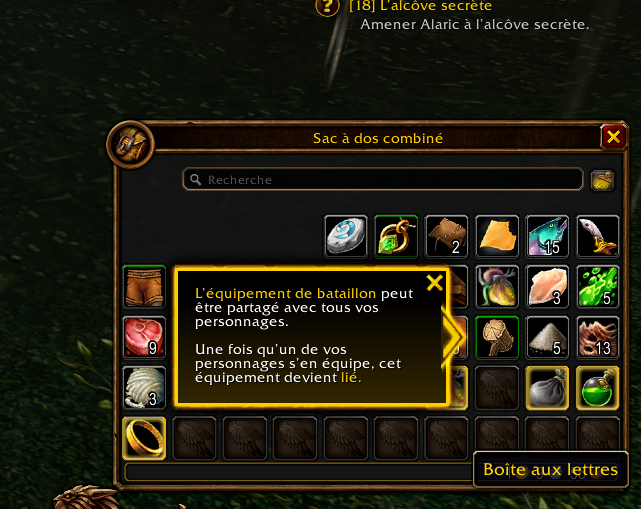
A beta screenshot mentions gear shared between characters until equipped. Here is what the tooltip shows, what it means and what remains unverified in Forever.